Closed for the Holidays? How to Prep Fusion Before Your Facility Shuts Down for Break
"We're closed for the holidays. What should we set up in Fusion before we go?"
It's one of the most common questions we hear this time of year, and the best answer is simple: do it now. A few minutes of setup in October saves your team from cancellations, refunds, and confused members in December.
When closures aren't reflected in Fusion ahead of time, members can register for program sessions that won't happen and book spaces that will be locked. Every one of those becomes a refund to process, an email to send, or a frustrated patron at a locked door. Here's how to get ahead of it.
Manage your facility closures
Three quick steps keep your programs, spaces, and bookings in sync with your break schedule.
1. Remove Program instances on closed dates before registration opens
Know you're closed for the holidays? Do this now! Once registration opens, members can sign up for an instance, including ones that fall on days you're closed. Cleaning those up afterward means cancellations, refunds, and member notifications for every affected registration.
The fix is easy if you do it early. Before sign-ups open for your winter session, delete the program instances scheduled on closure dates. Members will only ever see dates that are actually happening.
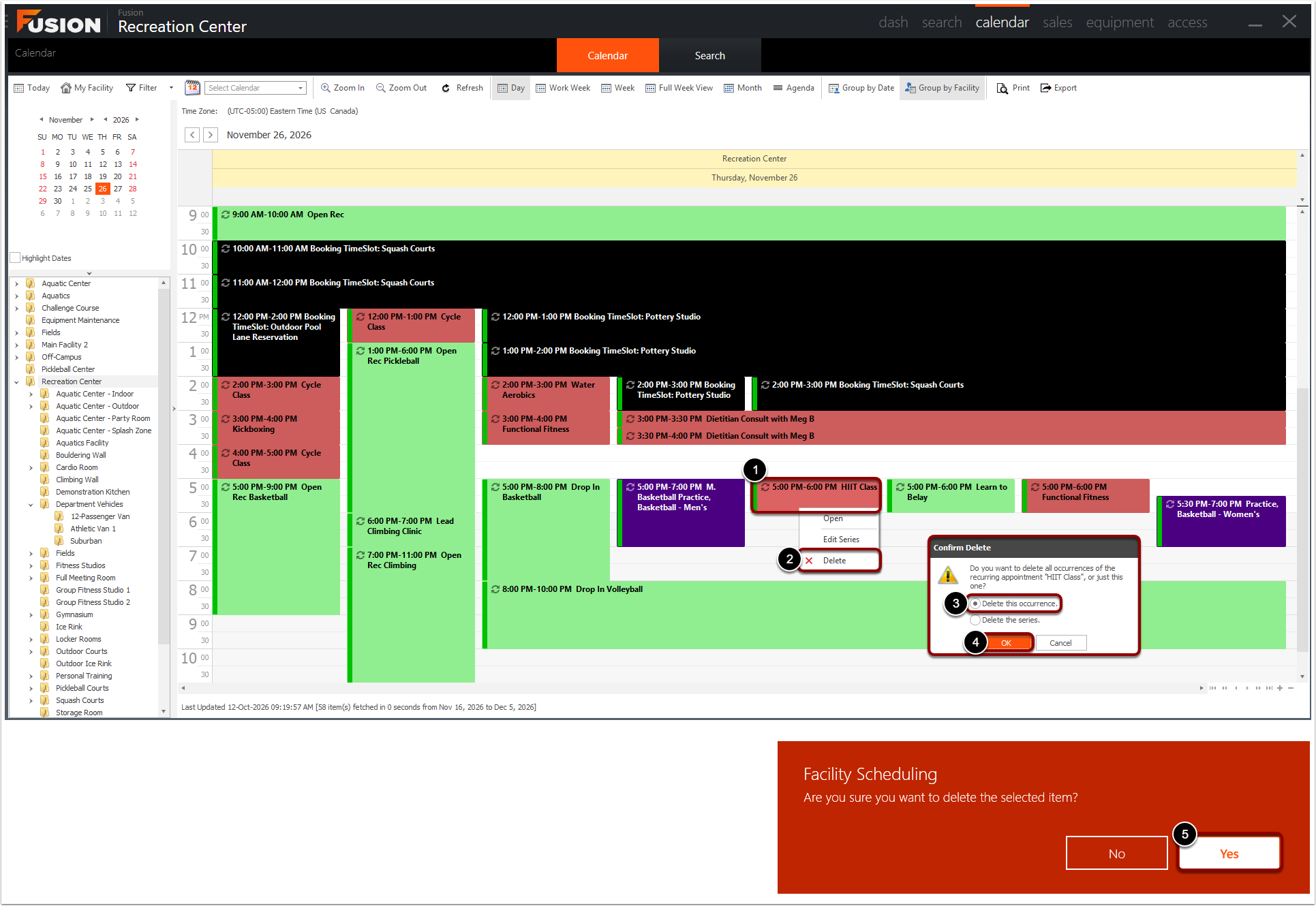
To delete a Program instance from the calendar:
Right-click on the desired event.
Click Delete.
Ensure Delete this occurrence is selected.
Click OK.
Click Yes to confirm the deletion.
Please note if registration has already opened, you will want to email the folks registered prior to deleting the event. Deletion will not notify previously registered members.
2. Add a "Closed for Break" facility booking
Block your spaces for the full closure by creating a facility booking named something clear, like "Closed for Break." This makes the closure visible on the calendar for staff and members at a glance.
Tip: Use the same booking name convention every break so staff learn to recognize it instantly.
3. Clear Booking Manager for closed areas
Delete Booking Manager entries in any area covered by your closure so nothing conflicts with your "Closed for Break" booking or stays open to members.
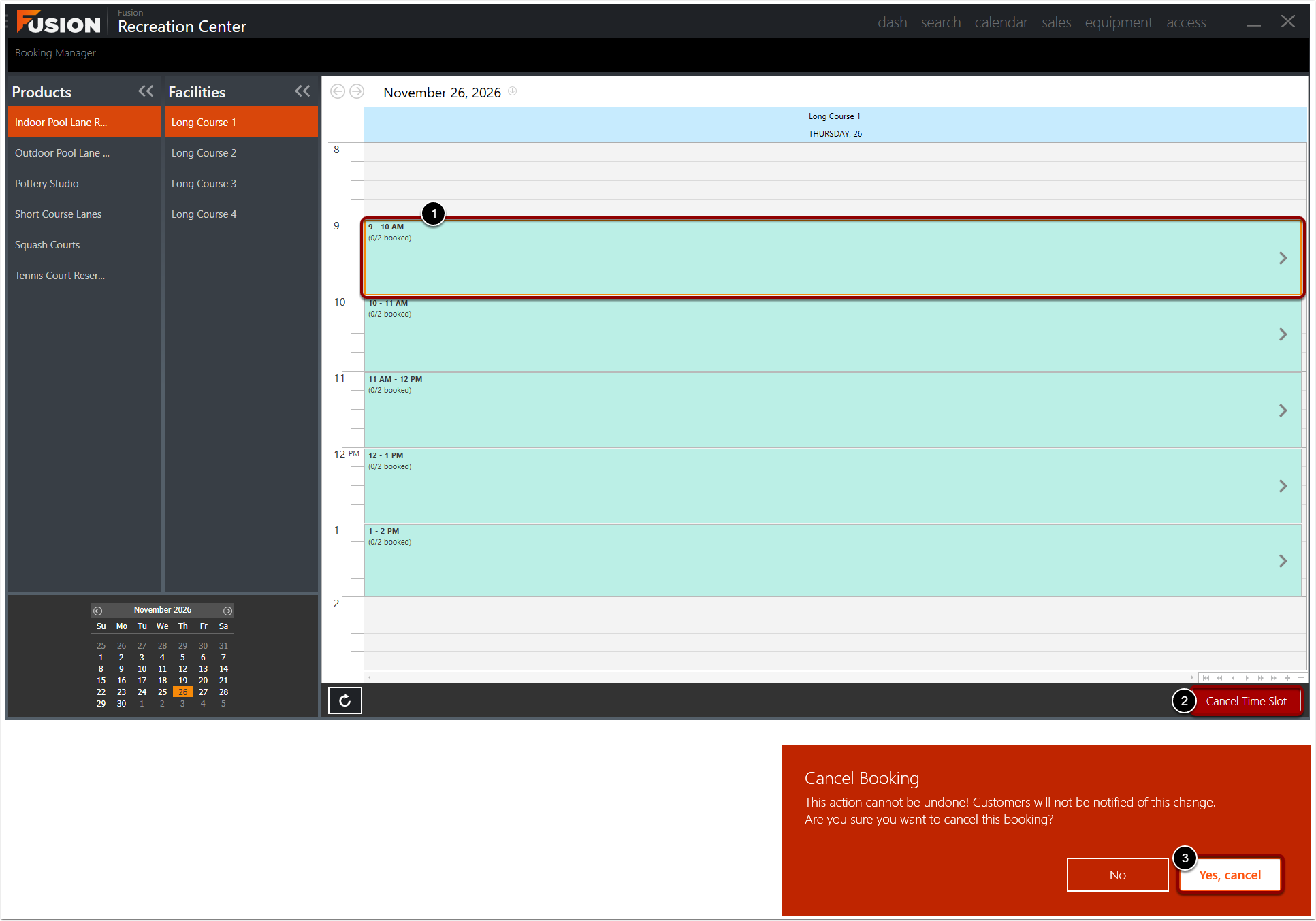
To delete a Booking timeslot from Booking Manager:
Click on the desired event.
Click Cancel Time Slot.
Click Yes, cancel to confirm the deletion.
Please note if registration has already opened, you will want to email the folks signed up prior to deleting the event. Deletion will not notify previously registered members.
Let your members know
Once Fusion reflects your closures, tell members early so no one is caught off guard. Announce break dates through email, Fusion Wave, and FusionGO app notifications, and repeat the reminder a few days before you close.